
WiFi Security Camera Guide 2026: The Complete Wireless CCTV Buyer Manual
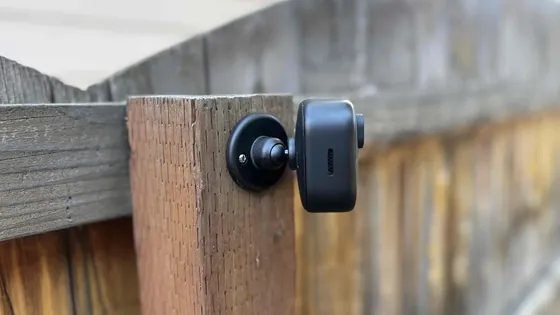
Table of Contents
Your wireless security camera goes offline at 2 a.m., and the one incident you needed is a gray gap in the timeline. That failure is rarely the camera — it is radio physics plus setup choices. WiFi is shared airtime: drywall steals 3-5 dB per wall, concrete steals 15-25 dB, every neighboring access point competes for the same channels, and each camera you add splits the same bandwidth. A 4-camera wifi security camera system on one 2.4GHz access point typically settles around 2MP per camera before streams start buffering — and most "camera keeps disconnecting" cases trace back to placement, band selection or router limits rather than faulty hardware.
This guide is the complete 2026 manual for wireless security cameras: how a wifi camera encodes and streams video, the 2.4GHz vs 5GHz decision with real range and penetration numbers, how to place outdoor wifi cameras so the signal survives walls and weather, bandwidth and storage math you can run before ordering, WPA3 and the settings that keep a wireless home security camera from becoming a network back door, the wireless vs wired reliability comparison, a step-by-step installation sequence, a dropped-connection diagnosis checklist, and the rules that make multi-camera wireless systems hold up in B2B and batch deployments. By the end you can spec, install and troubleshoot a wireless security camera system from a supplier quote — without learning the hard way.
Keep reading for more!
The Snapshot
- A wifi security camera is a network camera with a built-in radio (IEEE 802.11b/g/n/ac/ax): it encodes video in-camera (H.264/H.265) and streams it to an NVR, an app or an SD card over your wireless network — no video cable required.
- The two bands are not interchangeable for cameras: 2.4GHz penetrates walls and reaches 30-60 m indoors but offers only 3 non-overlapping channels (1, 6, 11); 5GHz is faster and less congested but roughly halves the range and loses far more signal through walls.
- Camera WiFi links are shared airtime: 4 cameras at 4MP on one 2.4GHz access point will buffer. Budget 2-4 Mbps sustained per H.265 camera and keep every camera's RSSI above -60 dBm.
- WPA3 (SAE) is mandatory on new Wi-Fi CERTIFIED hardware; disable WPS, change default passwords, and never port-forward to a camera — use P2P or VPN for remote access.
- A "wireless security camera system" can be all-WiFi, a WiFi camera + NVR kit, battery/solar powered, or 4G/5G cellular — the right choice depends on whether power and broadband actually exist at the mounting point.
What Is a WiFi Security Camera?
A wifi camera (also sold as a wireless wifi camera or wireless security camera) is an IP camera with a built-in WiFi radio instead of an Ethernet port as its primary link. Everything else is the same architecture as a wired network camera: the camera runs its own processor, encodes video with H.264 or H.265, and streams compressed data to wherever you point it — an NVR, a network video recorder, a phone app via P2P, or its own SD card slot. "Wifi security camera" and "wireless security camera" searches are the same buyer: someone who wants camera coverage without pulling cable.
1. Form factors: bullet, dome, PTZ and mini
The physical camera is identical to its wired cousin. Outdoor wifi cameras come as weatherproof bullets (IP66/IP67), discreet domes, and motorized PTZ units — the "wifi camera ptz outdoor", "wireless ptz camera", "wifi ptz cameras" and "outdoor cctv camera ptz wifi" searches describe the same class: an IP66-rated wireless pan tilt zoom camera that pans, tilts and zooms over the network — the "camera ptz wifi ip66" and "wireless ip camera ptz" long-tails are this same hardware with a weatherproof housing. Indoor models add mini cameras, dual lens wifi ip camera units (one wide + one tele lens for 2x-4x digital zoom without moving parts), and compact "outdoor waterproof smart wifi camera mini ptz dome" all-in-ones. Form factor does not change the wireless math — a bullet and a dome at the same mounting point see the same signal.
2. Power and network variants
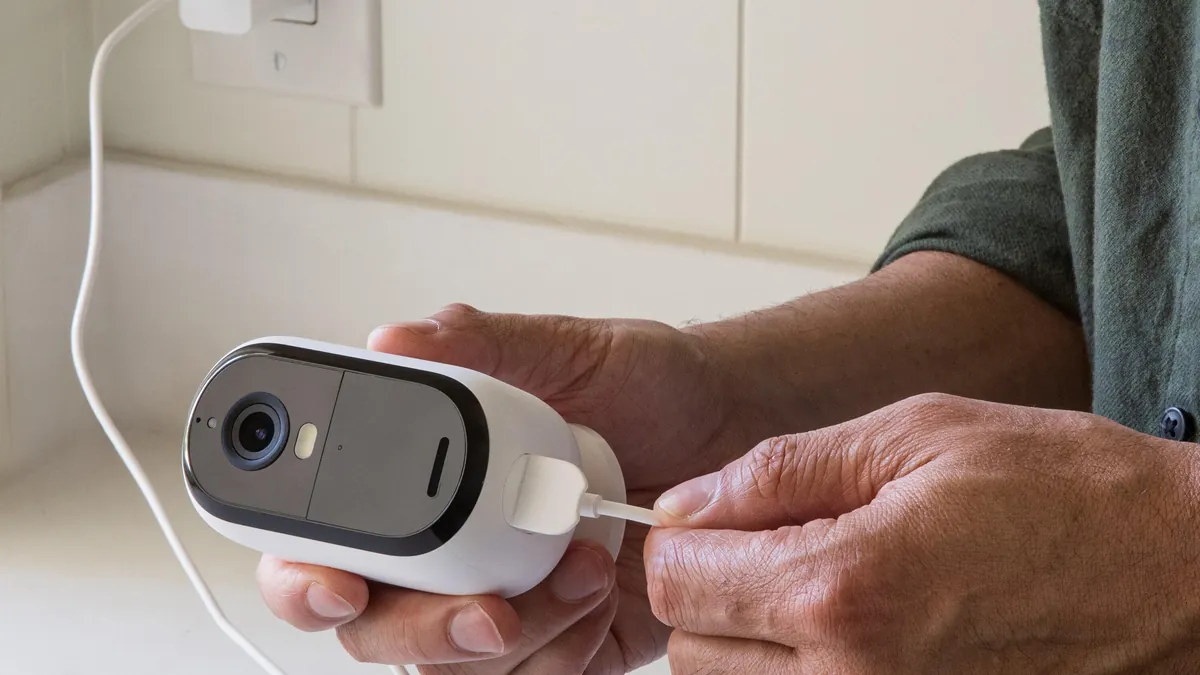
"Wireless" describes the video link, not the power source, and buyers routinely confuse the two. Plug-in wifi cameras need a 12V or 5V power adapter at the camera — wireless only for data. Battery cameras and solar-powered cameras run on internal packs (typically 5,000-10,000 mAh, motion-triggered recording to stretch weeks between charges) and are genuinely cable-free. 4G/5G cameras carry a SIM slot and connect over cellular — a 5G wireless security camera streams 2-4 Mbps per camera over the mobile network, the right answer when there is no broadband at all. Wireless security cameras with local storage (SD card) and wireless camera with monitor kits — a dedicated screen that pairs directly with the camera, no app and no internet — cover the no-cloud buyer. For buyers who want everything in one box, a wireless cctv camera kit bundles cameras, recorder and monitor with pre-paired radios — the fastest path to a working system. The "do wireless cameras need wifi" question has a precise answer: plug-in and battery WiFi models need a WiFi network; 4G/5G and some solar units do not.
3. What "wireless" does and does not mean
Wireless means no video cable — it does not mean no network, no power, and it certainly does not mean no limits. Every wifi camera still consumes network bandwidth, still needs a password-protected network, and still competes with every other device on the same access point. A good wifi camera also carries local storage (SD card, up to 256 GB in most models) and two-way audio — a wireless camera with two way audio lets staff talk through the camera, standard on most 2026 models — and the better ones are ONVIF-compliant so an onvif wifi camera joins a third-party NVR instead of locking you into one app. Treat the WiFi link as a constrained resource and design the system around it — that mindset prevents most field failures.
2.4GHz vs 5GHz: Which Band Should Your Camera Use?
The single biggest wireless decision is the frequency band, because it trades range against throughput and congestion. Both bands carry video fine — the question is which one survives your building. The numbers below are the ones that matter on a spec sheet.
| Factor | 2.4GHz band | 5GHz band |
|---|---|---|
| Standards | 802.11b/g/n (WiFi 4) | 802.11a/n/ac/ax (WiFi 5/6) |
| Typical link rate | Up to 300 Mbps (2-stream 802.11n) | 433 Mbps per stream (802.11ac), 1.3+ Gbps multi-stream |
| Non-overlapping channels | 3 (channels 1, 6, 11) | Up to 23 (20 MHz-wide channels) |
| Indoor range through walls | 30-60 m through 2-3 walls | 10-30 m through 1-2 walls |
| Wall penetration | Better — longer wavelength | Roughly half — loses ~2x the dB per obstacle |
| Interference sources | Microwaves, Bluetooth, ZigBee, neighbor APs | Much less crowded; DFS radar sharing in some channels |
| Best camera use | Distance, outdoor cameras, multi-wall sites | Indoor cameras near the router, high-resolution streams |
1. When 2.4GHz is the right choice
For any camera more than one wall away from the router, or any outdoor wifi camera mounted on an eave, fence or gate, 2.4GHz is usually the reliable choice. A 2.4GHz signal at 20 MHz channel width carries a 4MP H.265 stream (2-4 Mbps) easily — the band's modest link rate is not the bottleneck, congestion is. The real constraint on 2.4GHz is that only 3 non-overlapping channels exist (1, 6, 11), so in dense neighborhoods your camera fights every neighbor's router on the same three channels. Keep the camera on the same channel family as your main AP, use 20 MHz width (never 40 MHz on 2.4GHz — it overlaps the other channels and causes retries), and the stream stays stable.
2. When 5GHz wins
5GHz is the right band for indoor cameras within 10-30 m of the access point — a reception desk camera, a shop interior dome, a warehouse aisle near an AP — and for a 5GHz wifi camera running 4K/8MP streams that need sustained 4-8 Mbps without contention. The 5GHz band offers up to 23 non-overlapping 20 MHz channels, so interference is rarely the problem; distance is. Through one drywall wall, a 5GHz link typically loses 6-10 dB versus 3-5 dB for 2.4GHz, and concrete blocks it hard. If the camera's RSSI on 5GHz sits below -67 dBm, move it to 2.4GHz rather than adding amplifiers.
3. The dual-band rule for cameras
Set every camera to connect to whichever band gives an RSSI of -60 dBm or better at the mounting point — measured, not guessed. The practical pattern: 2.4GHz for outdoor and wall-separated cameras, 5GHz for indoor cameras close to the router or NVR. Some dual-band cameras let you lock the band per camera; do that, because band-steering on the router can bounce a camera between bands and cause a reconnect drop every time it switches.
Signal Range, Wall Penetration and Camera Placement
"How far can a wireless security camera be from the router?" is the most-asked pre-purchase question, and the honest answer is: it depends on what is between them. Range claims on boxes assume open air. Real buildings are made of signal-killers.
1. Range numbers that mean something
Open-air line of sight, a stock 2.4GHz camera radio reaches 100-300 m; 5GHz reaches 100-150 m. Indoors, count walls instead of meters: 2.4GHz reliably crosses 2-3 typical drywall walls (30-60 m of floor space), 5GHz crosses 1-2. Every wall adds loss — drywall and studs add 3-5 dB, brick and concrete add 15-25 dB, and metal (ducting, shelving, foil insulation) can kill a signal outright. A rule of thumb: each 6 dB of loss halves the usable distance; each 10 dB divides signal power by ten.
2. Read the RSSI, not the bars
The wifi camera app or router status page shows signal strength as RSSI in dBm, and that number is the only honest range measurement. -30 dBm is excellent, -60 dBm is the working target for a camera stream, -67 dBm is the edge of reliability, and -80 dBm means the camera will keep disconnecting. When a wireless security camera buffering or dropping frames, check RSSI first — if it is below -67 dBm, no amount of camera-side tweaking fixes it; the link needs to move, or the access point needs to move closer.
3. Placement rules that prevent rework
Mount a wifi outdoor camera 2.5-4 m high, aimed down 10-20 degrees for face capture — height also improves the radio's line of sight. Keep the camera's antenna vertical and clear of metal gutters, brackets and foil-faced insulation. Do not tuck the camera into a corner behind the AP's radiation pattern. For outbuildings, garages and gates beyond one AP's reach, add a second access point or a mesh node rather than a repeater: repeaters halve throughput per hop, while a wired or mesh backhaul keeps full bandwidth at the camera. A dedicated mini wifi router or a second AP on a wired backhaul is the cheapest fix for a dead zone that no amount of repositioning cures.
WiFi vs Wired: Reliability Compared
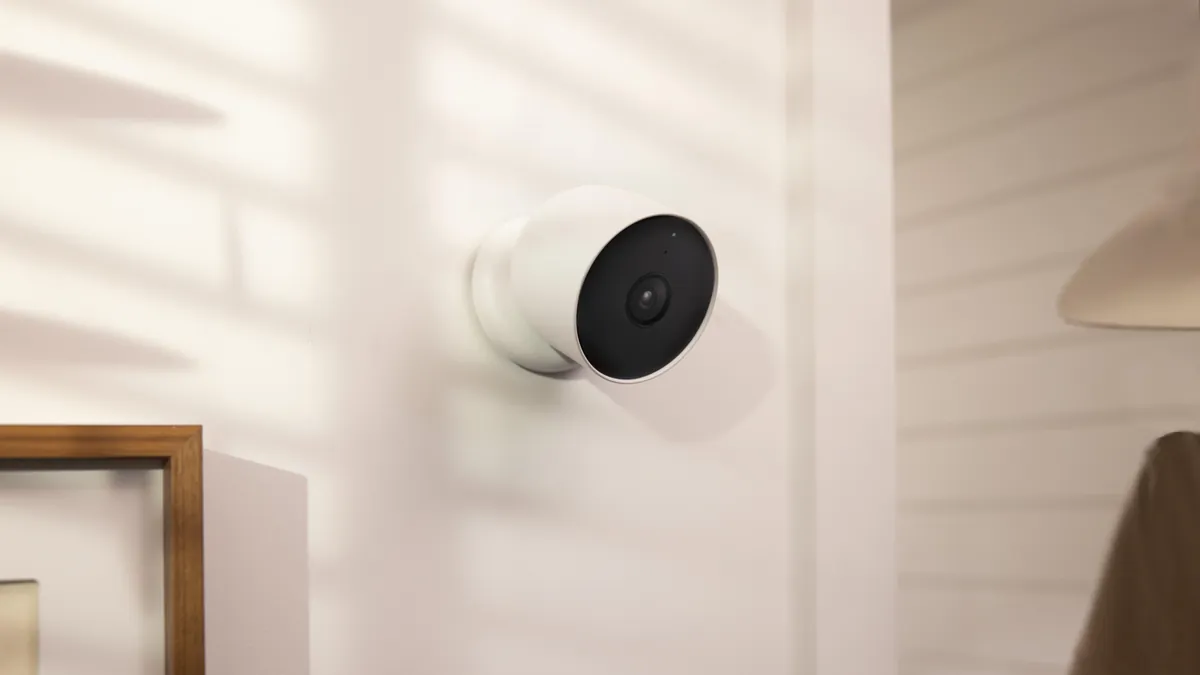
The "wired or wireless security cameras" and "wireless cctv camera vs wired" debates come down to one word: determinism. A wired camera's bandwidth is guaranteed by the cable; a wireless camera's bandwidth is guaranteed by nothing — it is shared, contended and weather-dependent. For evidence-critical coverage, that difference decides whether the footage exists.
| Factor | WiFi camera | Wired (PoE) camera |
|---|---|---|
| Signal medium | Shared wireless spectrum | Dedicated Ethernet cable |
| Bandwidth | Shared airtime; 4 cameras on 2.4GHz often cap near 2MP each | Up to 1000 Mbps per link (PoE 802.3af/at, 100 m max run) |
| Latency and jitter | 20-50 ms, varies under load | <5 ms, deterministic |
| Failure modes | Interference, walls, channel congestion, band-steering drops | Cable damage, switch port failure, PoE power sag |
| Installation | Minutes, no cabling, no drilling for data | Cable runs, termination, surge protection |
| Security surface | Entire WiFi network must be locked (WPA3) | Physical port access + network ACLs |
| Best for | Retrofit, rentals, temporary sites, remote spots | New builds, 4K multi-camera systems, evidence-critical zones |
1. Where wired still wins
For a "poe vs wifi camera" decision on a new build, PoE wins on reliability and scale: every camera gets a full-duplex 100 Mbps or 1 Gbps link, one cable carries power and data (IEEE 802.3af delivers 15.4 W, 802.3at delivers 30 W), and a 16-camera system's bandwidth is a solved problem instead of an airtime budget. Wired also wins for 4K recording at 8 Mbps per camera, where a congested 2.4GHz band cannot hold eight simultaneous streams.
2. Where wireless wins anyway
WiFi wins wherever cabling is impossible or uneconomic: finished interiors, rented premises, construction sites, farms, temporary events, and anywhere the cable run exceeds 100 m or crosses a road. A wifi camera installs in minutes and moves in minutes. For a 2MP-4MP retrofit on an existing business network, wireless is the fastest route to coverage — if the signal is planned, not hoped for.
3. The hybrid that most sites should run
The professional pattern is not either/or — it is hybrid: wired PoE for the perimeter and critical entrances, wifi cameras for interior retrofit spots and outbuildings where cable is impractical. Both feed the same NVR, and ONVIF doesn't care how the stream arrived. The "wifi vs poe camera" buyer who picks one architecture for the whole site is usually paying for unnecessary cabling or accepting unnecessary risk.
Bandwidth and Storage Math for Wireless Systems
WiFi systems fail when the airtime budget runs out, so the math must happen before purchase, not after. Here is the calculation suppliers use, with numbers you can check against any quote.
| Camera class | Typical bitrate | Storage per camera (24/7) | 4-camera system per day |
|---|---|---|---|
| 2MP, H.264 | 2-4 Mbps | 22-43 GB | 88-172 GB |
| 4MP, H.265 | 2-4 Mbps | 22-43 GB | 88-172 GB |
| 8MP/4K, H.265 | 4-8 Mbps | 43-86 GB | 172-344 GB |
1. Per-camera bitrate reality
A 4MP H.265 camera at 15 fps needs 2-4 Mbps for the main stream plus 0.5-1 Mbps for the sub-stream used by apps and remote viewing. H.264 at the same resolution needs roughly double. The wireless implication: a 4-camera 4MP system sustains 8-16 Mbps of airtime — which a healthy 2.4GHz link (20-40 Mbps real throughput) can carry only if nothing else uses it. Add office laptops, phones and a guest network on the same AP, and the cameras starve first because video streams are constant, while web traffic is bursty.
2. System totals and the uplink check
Storage: 4 cameras at 4 Mbps recording 24/7 = about 172 GB per day; a 2TB drive holds roughly 11 days, a 4TB drive roughly 23 days. Remote viewing: every app viewer pulling a 1 Mbps sub-stream adds upload demand, so an 8-camera site with 4 simultaneous viewers needs 8-12 Mbps of sustained upload — check the business broadband uplink before promising 24/7 remote access. If the uplink is short, reduce frame rate or switch to motion-only recording rather than dropping resolution.
3. Cutting the math: motion-only and sub-streams
Motion-triggered recording cuts average bandwidth and storage by 50-80% on most sites, because a parked lot or empty corridor produces hours of near-static frames. Dual-stream configuration is the other lever: record the full main stream to the NVR or SD card, serve the sub-stream to phones, and never waste main-stream airtime on a live-view grid. A wireless security camera system designed this way fits comfortably in airtime that a 24/7 main-stream system would exhaust.
WiFi Security: WPA3, Passwords and Firmware
A wifi camera is a computer on your network with a lens — and default credentials have built botnets. The "wifi camera" that is easy to install is equally easy to hijack if the network around it is left open. Security here is a stack, not a single setting.
1. WPA2 vs WPA3: what actually changed
WPA3 replaced WPA2's PSK handshake with SAE (Simultaneous Authentication of Equals), which is resistant to offline dictionary attacks — an attacker who captures the handshake cannot brute-force the password off-site. WPA3 has been mandatory for Wi-Fi CERTIFIED devices since 2020, and the Wi-Fi Alliance no longer certifies WPA2-only hardware, so any router and camera bought for a 2026 deployment should run WPA3 (or WPA3/WPA2 transitional mode for older clients). On the enterprise side, WPA3-Enterprise with 802.1X and RADIUS replaces shared passwords with per-user credentials — the right model for a business deploying cameras across multiple staff.
2. Five settings to lock down on every deployment
(1) Disable WPS — the PIN method is an 8-digit code with a checksum, effectively ~11,000 guesses, brute-forceable in hours, and it bypasses your password entirely. (2) Change the default admin password on every camera and the router; default credentials are the number-one attack vector in camera botnets. (3) Disable UPnP on the router — it auto-opens ports and is how cameras end up exposed to the internet without anyone knowing. (4) Never port-forward to a camera; use P2P (the vendor's relay, no open ports) or a VPN for remote viewing. (5) Put cameras on their own SSID/VLAN, isolated from office PCs — a compromised camera should not reach a file server.
3. Firmware and account hygiene
Cameras ship with firmware that ages fast; check the update policy before buying, not after. A camera that cannot update firmware is a fixed vulnerability, and budget cameras that advertise "no subscription" but no update path are a liability on a business network. Use a unique password per camera or a password manager, enable two-factor authentication on the cloud/P2P account, and audit which devices have app access. For an "onvif wifi camera" joining a third-party NVR, create a dedicated ONVIF user with recording-only rights instead of handing out the admin account.
Wireless Security Camera Installation Step by Step
"Wireless camera installation" fails more often on process than on hardware. This is the field sequence that works for a single wifi camera, a 4-camera kit, or a wifi 4ch ip camera nvr kit where the recorder itself is the access point.
1. Survey the signal before mounting anything
Hold the camera (or a phone on the same WiFi) at each planned mounting point and check RSSI: target -60 dBm or better. If the reading is below -67 dBm, relocate the AP, add a mesh node, or move the camera — this 10-minute check prevents a full day of rework. Note the channel in use and confirm it does not overlap a neighbor's strongest AP (use channels 1, 6 or 11 on 2.4GHz).
2. Pair the camera and lock the band
Power the camera, pair it in the app, and explicitly set the band (2.4GHz or 5GHz) instead of leaving band-steering to guess. Set the admin password to something new immediately — most cameras ship with a default you should never keep. If the camera supports a QR-pairing mode, use it; it associates the camera with the right network without typing credentials into a lens-facing keypad.
3. Mount, aim and protect the cable
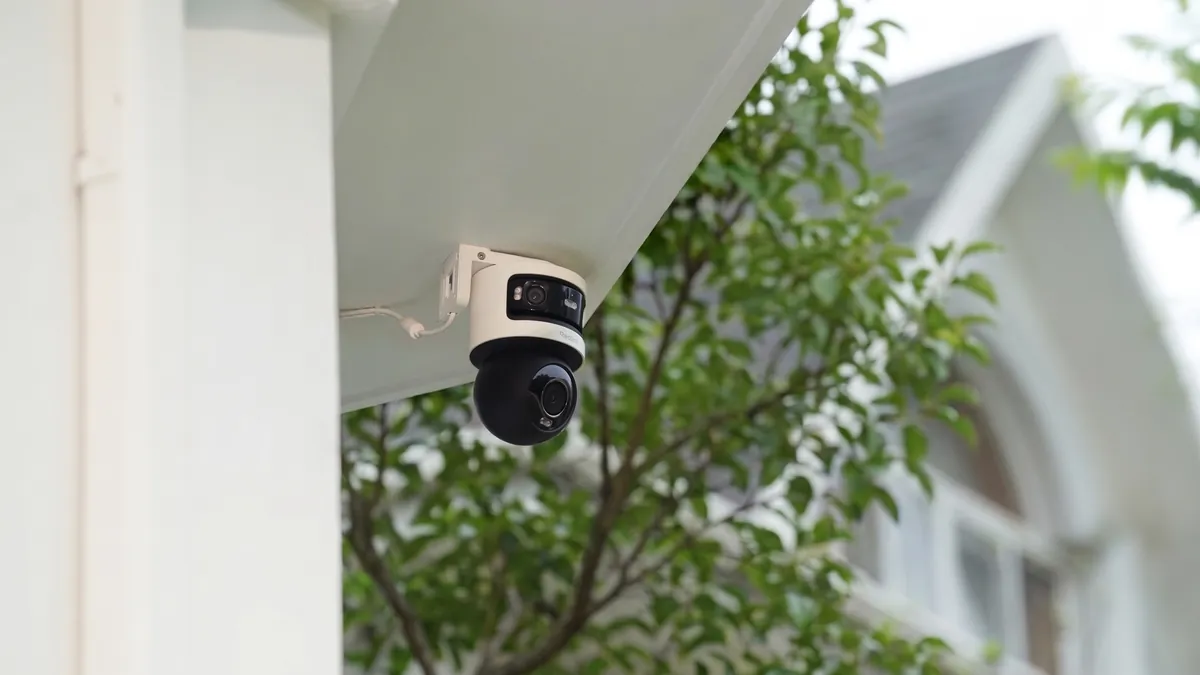
Mount at 2.5-4 m with the antenna vertical and clear of metal. Aim for faces at the chokepoints — doors, gates, tills — and avoid pointing into direct sun or windows behind the subject. For outdoor wifi cameras, seal the power connection with a weatherproof box or drip loop; water in the connector is the #1 cause of "camera died after rain" reports, and it is a power problem, not a WiFi problem.
4. Configure streams, motion and storage
Set dual streams (main for recording, 512 kbps-1 Mbps sub-stream for apps), draw motion zones that exclude roads and trees, and insert the SD card (or point the stream at the NVR) so local recording acts as failover if the network drops. For a wireless nvr kit home deployment — or the "wifi wireless camera nvr kit" bundles resellers stock — add the cameras to the recorder's channel list and enable the recording schedule — motion-only for low-traffic zones, continuous for entrances.
5. Verify at night, then walk away
Test after dark: usable footage at the distances you care about, motion triggers push alerts within seconds, and playback is smooth on cellular data, not just home WiFi. Reboot the router once with cameras attached and confirm they auto-reconnect — a camera that needs manual re-pairing after a power cycle will haunt you forever.
Dropped Connections: Diagnosis and Fixes
Every "wifi camera keeps disconnecting" case has a measurable cause. Diagnose in this order and you will find it in under an hour.
1. Camera drops offline intermittently
Check RSSI first — below -67 dBm, the radio is negotiating retries instead of streaming, and it will disconnect on any interference burst. Fix: move the camera or AP, or switch the camera to the 2.4GHz band. If RSSI is healthy, check channel congestion: in a scan, if your 2.4GHz channel hosts 8+ neighbor networks, pick the least-used of 1, 6, 11 and lock both AP and camera to it. Next suspect is band-steering — lock the camera to one band. Last suspect is the router's DHCP lease or power-save on the camera radio: extend the lease and disable WiFi power-saving if the camera firmware exposes it.
2. Live view buffers or stutters
That is bandwidth, not connectivity: the airtime is exhausted or the uplink is small. Confirm the camera is on the main stream for recording and the sub-stream for viewing, drop the live-view grid to sub-streams, and check the router's client list for bandwidth hogs (cloud backups, video calls) on the same AP. A 4-camera system on one 2.4GHz AP will stutter at 4MP main-stream live view — that is physics, so plan 2MP sub-streams or a second AP.
3. Camera refuses to pair
Most pairing failures are band mismatch: the phone is on 5GHz while the camera only supports 2.4GHz, or the camera supports 5GHz but the SSID uses WPA3-only auth the camera's older radio cannot join. Temporarily enable WPA2/WPA3 transitional mode on the network, pair, then re-enable. Also confirm the camera is within range during pairing — pairing transmits at higher power but the handshake needs a stable link, so pair near the router and move after.
4. Good signal, still drops at night
Night drops with daytime stability usually mean the IR LEDs are pulling power through a weak adapter: the camera's IR array adds 2-5 W, and a marginal 12V adapter sags, the radio browns out and the camera reboots. Swap the adapter for one rated 20-30% above the camera's max draw (typically 12V/1.5-2A for an IR bullet), and check the same for outdoor cameras with heaters or wipers. This is the single most common "mystery" disconnect on wireless outdoor cameras.
B2B Batch Deployment: Multi-Camera WiFi Systems That Actually Work
One wifi camera is forgiving; fifty are not. Batch deployments fail when the installer treats each camera as an island instead of designing the wireless fabric underneath. For integrators, resellers and importers, these are the rules that keep a 16-64 camera wireless deployment stable.
1. Capacity planning: cameras per access point
A single AP carries roughly 4-8 cameras at 2MP, or 2-4 at 4MP, before airtime contention degrades streams — video is constant-rate, so client-count limits (20-30 devices) are irrelevant; bandwidth per AP is the limit. Plan one AP per camera cluster and add headroom: a 16-camera warehouse typically needs 3-5 APs, not 1. Prefer wired/mesh backhaul between APs; daisy-chained wireless repeaters halve throughput per hop and cascade failures.
2. Channel and frequency planning
Lay out APs on non-overlapping channels — 2.4GHz channels 1, 6 and 11 only, adjacent APs on different channels — and use 5GHz (with DFS channels where regulation permits) for backhaul or for dense indoor clusters. Run a site survey after installation: verify RSSI per camera, confirm no AP is overloaded, and log the results. For construction site cameras wireless deployments that move weekly, standardize on 4G or solar units with a single management app instead of re-engineering WiFi at every relocation — the "wireless security cameras for construction sites" buyers usually end there.
3. Enterprise security: 802.1X, VLAN and SSID design
Put all cameras on a dedicated SSID/VLAN isolated from office traffic, and use WPA3-Enterprise with 802.1X/RADIUS when staff count warrants it — shared PSK passwords leak the moment someone leaves. Disable inter-VLAN routing from the camera network to the office LAN, restrict camera internet access to P2P relay domains and firmware update hosts, and record every camera's MAC and firmware version in a device register for patch tracking.
4. Procurement notes for resellers and integrators
When sourcing wifi security cameras at volume, ask the manufacturer for: ONVIF Profile S/T compliance (so the cameras join any NVR, protecting your integration), H.265 encoding (halves storage and airtime versus H.264), dual-stream and band-lock support, SD-card failover, a documented firmware update policy, and IP66+ housings with 6KV surge protection on the power input for outdoor runs. Confirm MOQ, lead time and warranty (2 years is the B2B baseline) in writing, and request a sample batch to test RSSI behavior and app reliability on your reference network before committing to a container order.
WiFi Camera Questions Buyers Ask
1. Do all cameras need WiFi?
No. Wired (PoE) cameras use Ethernet; 4G/5G cameras use cellular; some battery and solar models record to SD without any network and only sync when they can. A "wireless security camera" with no WiFi network available should be a 4G or local-SD unit, not a WiFi unit hoping for a signal.
2. Do wireless cameras need internet, or just WiFi?
They need a local network to stream to the recorder or app, and internet only for cloud/P2P remote viewing. A wifi camera on a local-only network still records to the NVR or SD card; it just cannot be viewed from outside. For sensitive sites, local-only recording with no internet exposure is a legitimate hardening choice.
3. PoE vs WiFi camera — which should I choose?
PoE when the site is new, high-resolution, or evidence-critical; WiFi when cabling is impractical, the site is temporary, or the cameras must move. For mixed sites run both into the same NVR — ONVIF treats them identically. The reliability gap is real: a wired link is deterministic, a wireless link is a budget you must plan.
4. How far can a wireless security camera be from the router?
Open air, 100-300 m on 2.4GHz. Indoors, count walls: 2-3 drywall walls is typical, one concrete wall is already pushing it, and metal kills the link. Measure RSSI at the mounting point and require -60 dBm or better; below -67 dBm, plan an extra access point.
5. Can I view wireless cameras without a subscription?
Yes — the "best wifi security camera without subscription" and "best wireless security cameras 2026" searches describe the same class: cameras that record to their own SD card or your NVR and use free P2P for remote viewing. There is no technical reason to rent cloud storage; check the app offers live view and playback at no fee before buying, because some brands monetize exactly that.
6. Can I mix a wifi camera with my existing wired NVR?
If the camera is ONVIF-compliant, yes — add it to the NVR's channel list by IP with its ONVIF credentials, exactly like a wired camera. This is how a "wifi security camera system" grows around an existing installation: add wireless cameras where cable stops, keep the recorder you already own.
7. How much WiFi speed does a camera need?
The camera needs 2-4 Mbps sustained per H.265 stream, but link speed and sustained throughput are different things: a "300 Mbps" 2.4GHz router delivers 40-60% of that in real throughput, shared by every device. Plan 20-40 Mbps of healthy airtime per camera cluster and you will never have to explain buffering to a client.
Buying Guide & Checklist
Use this checklist when comparing wifi camera quotes — from a single outdoor unit to a wholesale batch. It filters for the specs that decide whether the system works in year one and year five. Compare against the concrete wireless camera range.
- Band support: dual-band (2.4GHz + 5GHz) with per-camera band lock — non-negotiable for flexible placement
- Codec: H.265 minimum; halves storage and airtime versus H.264
- ONVIF: Profile S/T compliance so the camera joins any NVR or VMS, not just the vendor app
- Signal tools: RSSI readout in the app (to verify -60 dBm target at the mounting point)
- Local storage: SD card slot (128-256 GB) as failover and subscription-free recording
- Remote access: free P2P live view and playback — no port forwarding, no per-camera fee
- Weather rating: IP66+ for outdoor wifi cameras; 6KV surge protection on the power input
- Night capability: full-color low-light (0.1 Lux color) or IR (0.01 Lux); state which before quoting
- Security: WPA3 support, WPS can be disabled, default password must be changeable, documented firmware updates
- Supply terms: MOQ, lead time, 2-year warranty and RMA process in writing for any volume order
The Bottom Line
A wifi security camera is only as good as the radio link under it — plan the signal before you buy the hardware, and the system holds. The decisions that matter are few: 2.4GHz for distance and wall-heavy sites, 5GHz for close-in throughput; -60 dBm RSSI at every mounting point or an extra access point; 2-4 Mbps airtime budget per H.265 camera with motion-only recording as the safety valve; WPA3, WPS disabled and no port forwarding; and ONVIF compliance so the wireless cameras you add today still work with the recorder you replace tomorrow. Get those five right and a wireless security camera system matches wired reliability for most sites — without the cable. For volume buyers, the same checklist plus a manufacturer who documents firmware updates and supply terms is the difference between a deployment that scales and one that phones home for help.
NEXT STEP
Ready to Upgrade to Full-Color Night Vision?
Send us your requirements — our team responds within 24 hours with pricing and lead time.
Written by
Ray ChanCCTV Buyer's Guide Author · Full-Color Night Vision Specialist. Ray helps global importers and integrators source factory-direct security cameras.